

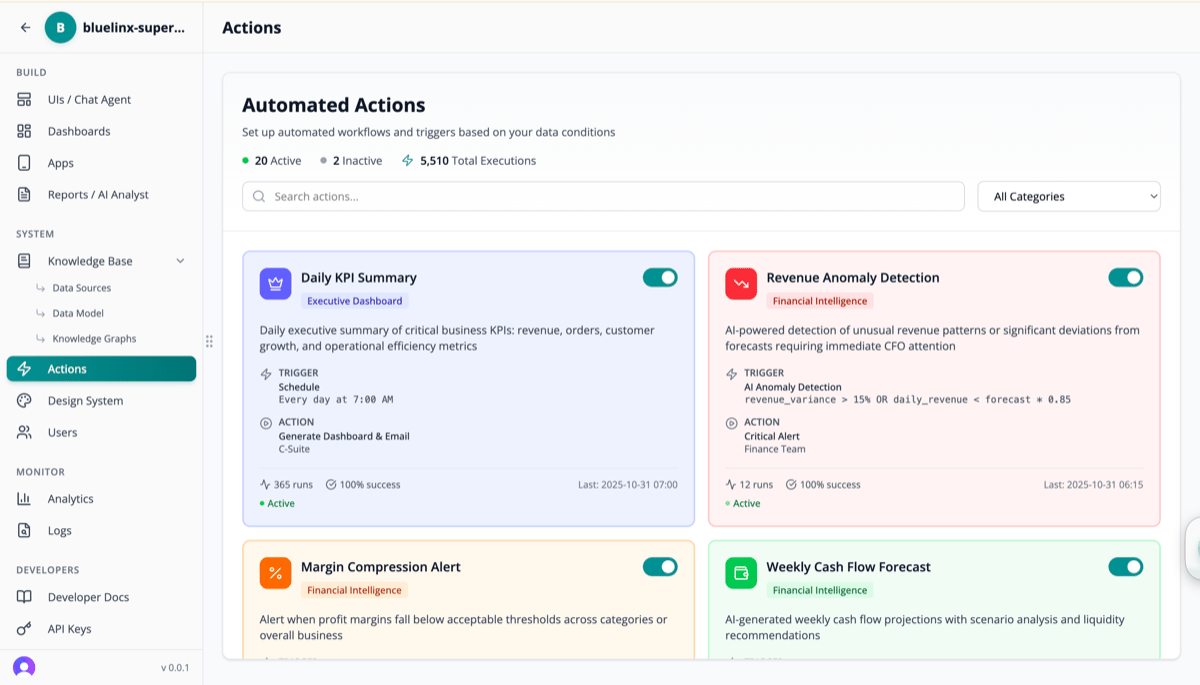
How Actions Work
Actions have three components:- Trigger: When to run
- Analysis: What to check or calculate
- Action: What to do with the results
Trigger Types
Approval Gates
Write-back actions pass through configurable approval levels based on risk:Dry-Run Mode
Any action can be simulated before activation. The system shows exactly what would happen: which records would be affected, what notifications would be sent, and what values would change, all without executing. Use dry-run mode during the first 1-2 weeks of a new workflow to validate its behavior.Action Types
Scheduled Actions
Run on a regular schedule:Daily KPI Summary
Every morning at 7 AM, send executive summary of business health
Weekly Cash Flow Forecast
Every Monday, generate cash flow projections for the week
Triggered Actions
Run when conditions are met:Revenue Anomaly Detection
Alert when revenue variance exceeds 15% from forecast
Margin Compression Alert
Notify when profit margins fall below acceptable thresholds
Creating an Action
1
Navigate to Actions
Click Actions in the sidebar under SYSTEM
2
Click Create Action
Start the action creation wizard
3
Choose Trigger Type
- Schedule: Run at specific times (daily, weekly, monthly, cron)
- Condition: Run when data meets criteria (threshold, variance)
- Event: Run when data changes (new record, status update, webhook)
4
Define the Analysis
Describe what to analyze: “Check if daily revenue is more than 10% below forecast”
5
Configure Actions
What happens when triggered:
- Generate dashboard
- Send email alert
- Post to Slack
- Create task
- Trigger webhook
6
Set Recipients
Who receives the output
7
Activate
Turn on the action
Example Actions
Daily KPI Summary
Revenue Anomaly Detection
Action Categories
Action Outputs
Dashboards
Auto-generated visual summaries with:- KPI cards for key metrics
- Trend charts
- Comparison tables
- AI-written analysis
Alerts
Notifications sent via:- Slack
- Microsoft Teams
- SMS (configurable)
- Push notification (mobile app)
Reports
Full PDF or interactive reports with:- Executive summary
- Detailed analysis
- Visualizations
- Recommendations
Webhooks
Trigger external systems:- Create tickets in Jira
- Update records in Salesforce
- Trigger workflows in Zapier
- Custom integrations
Monitoring Actions
Track action performance:Action History
View complete execution history:- When it ran
- What triggered it
- What actions were taken
- Who received outputs
- Any errors encountered
Multi-Step Workflows
Actions can chain multiple analysis and action steps:- Detect: Identify an anomaly or condition (e.g., inventory below safety stock)
- Investigate: Run root cause analysis (e.g., check demand spike, supplier delay, forecast error)
- Assess: Quantify impact (e.g., estimated stockout in 3 days, 45K revenue at risk)
- Act: Take action based on findings (e.g., generate PO, alert procurement manager, update dashboard)
Best Practices
Start with High-Value Alerts
Start with High-Value Alerts
Focus on metrics that directly impact business decisions.
Set Reasonable Thresholds
Set Reasonable Thresholds
Too sensitive = alert fatigue. Too loose = missed issues.
Include Context
Include Context
Alerts should explain WHY something happened, not just WHAT.
Review and Refine
Review and Refine
Regularly review action effectiveness and adjust thresholds.
Next Steps
Automated Analyst
How continuous monitoring works
Security
How actions respect access controls