

Prerequisites
Workspace Access
Your Superatom workspace URL and credentials
Data Source
Connection details for at least one database
Step 1: Log In
Navigate to your Superatom workspace URL and log in with your credentials or enterprise SSO.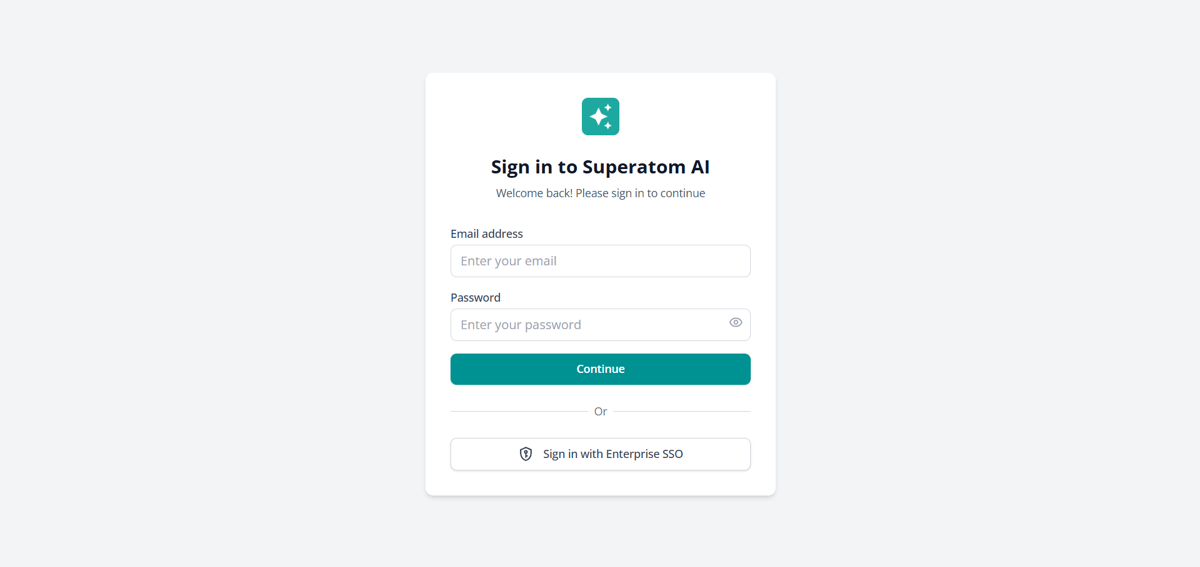
Login to the Superatom AI platform
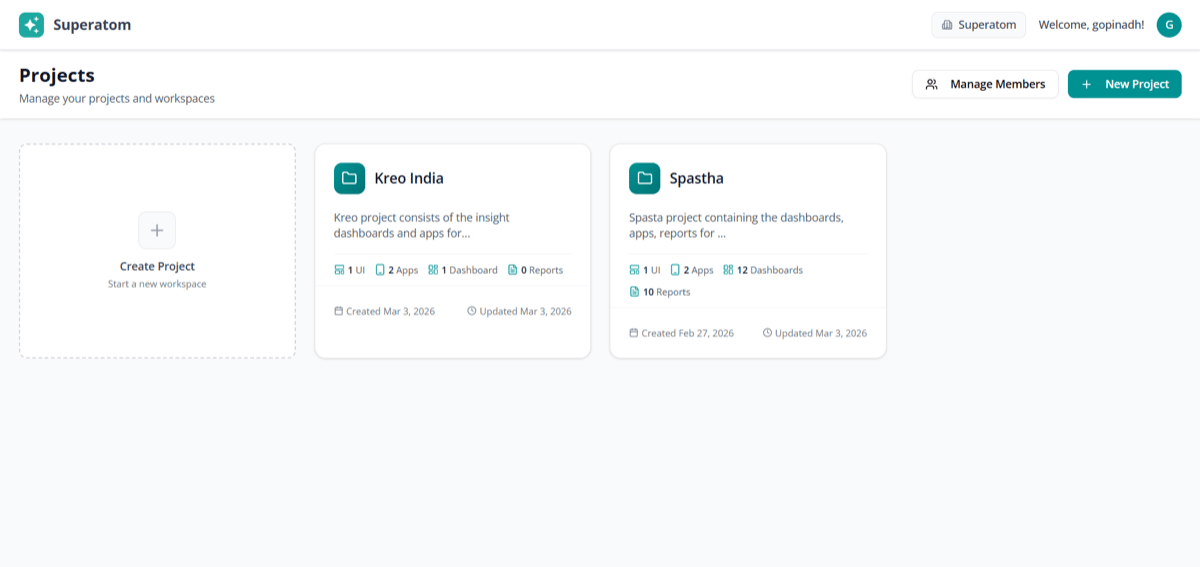
Home page — create and manage projects
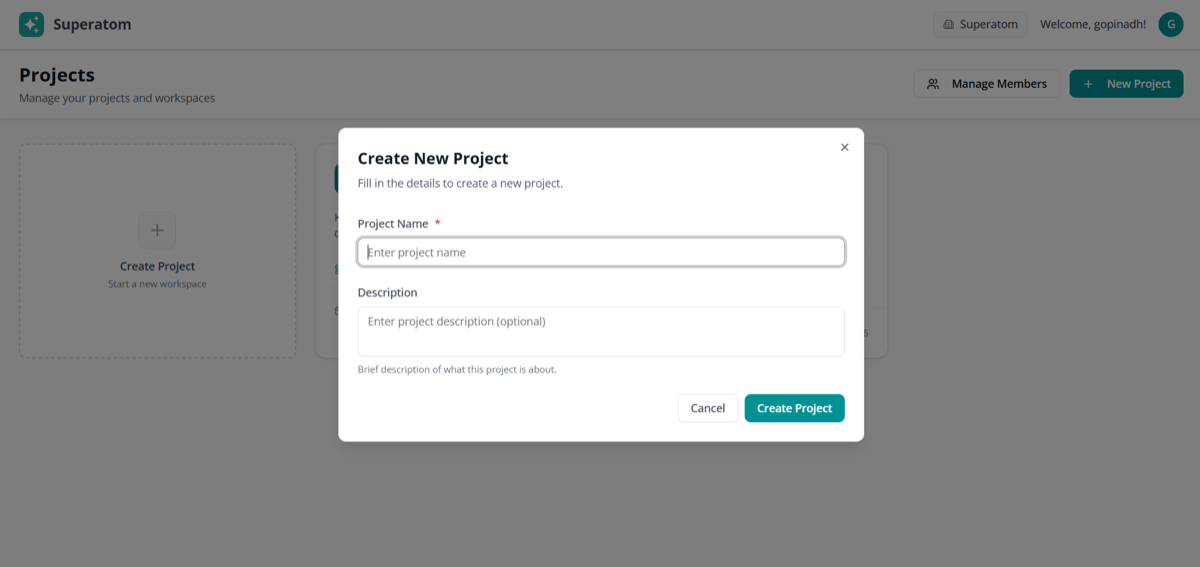
Create a new project
Step 2: Connect a Data Source
1
Navigate to Knowledge Base
Click Knowledge Base → Data Sources in the sidebar
2
Click Add Connection
Select your database type
3
Enter Connection Details
4
Test Connection
Verify connectivity before saving
5
Save
Connection is established
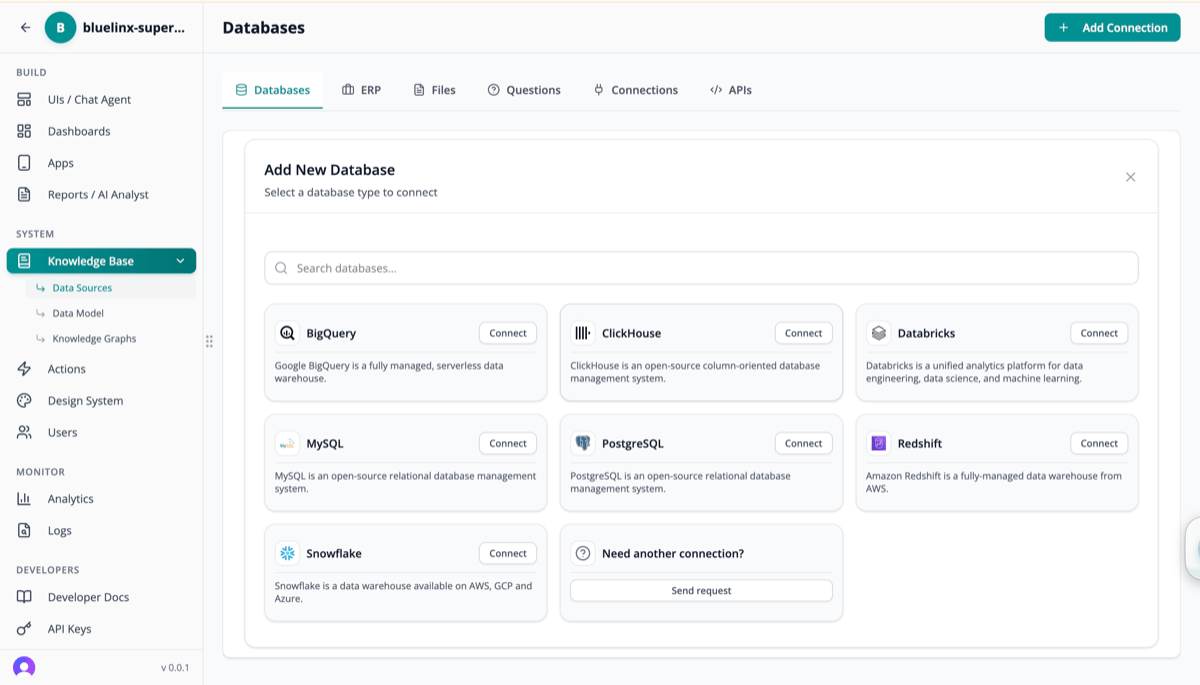
Supported database types
Step 3: Wait for Analysis
Superatom automatically analyzes your connected data: This typically takes 2-5 minutes for a medium-sized database. You’ll be notified when complete.Step 4: Ask Your First Question
Navigate to UIs / Chat Agent and ask a question:- Simple
- Business
- Analysis
What Happens
- AI understands your intent
- SQL is generated automatically
- Query executes against your database
- Visualization selected based on results
- Response streams in real-time
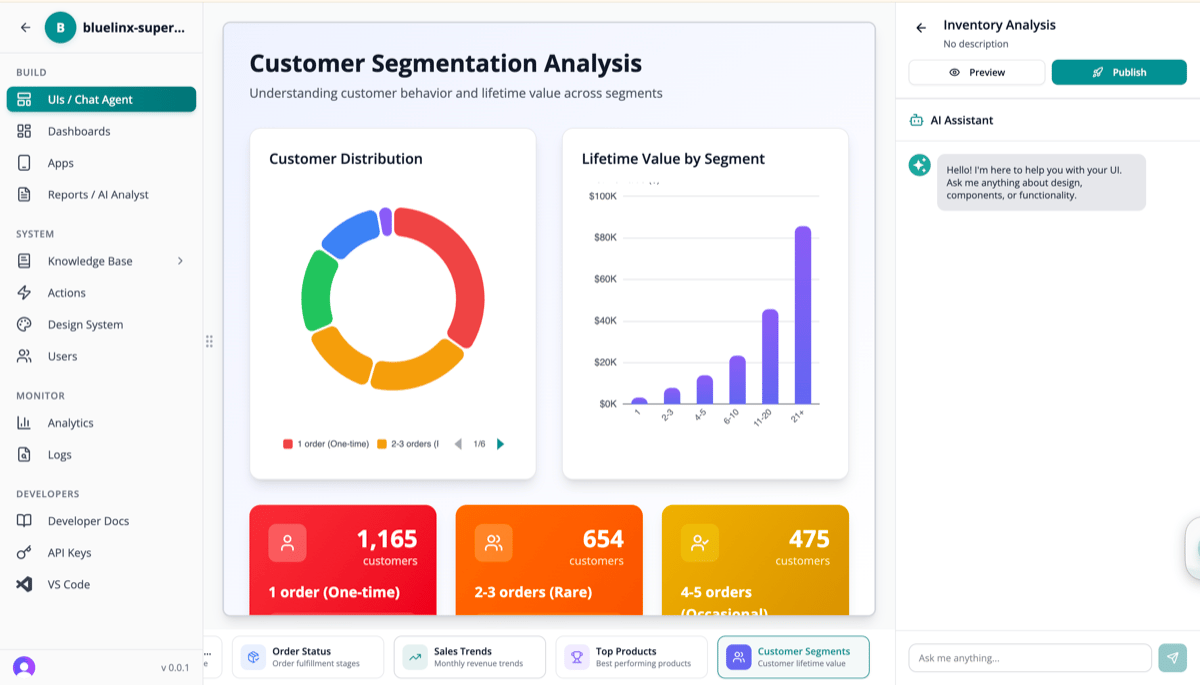
AI-generated analysis with visualization
Step 5: Explore Further
Follow-Up Questions
After each response, you’ll see suggested follow-ups:- “Break down by region”
- “Compare to last quarter”
- “What’s driving this trend?”
Save Useful Insights
Found something valuable?- Click the bookmark icon to save
- Add to a dashboard for ongoing monitoring
- Create a scheduled report for delivery
Step 6: Add Knowledge (Optional)
Make the AI smarter about YOUR organization:1
Go to Knowledge Graphs
Navigate to Knowledge Base → Knowledge Graphs
2
Create a Node
Click + Create Node
3
Add Business Rules
4
Save
Now all queries respect this rule
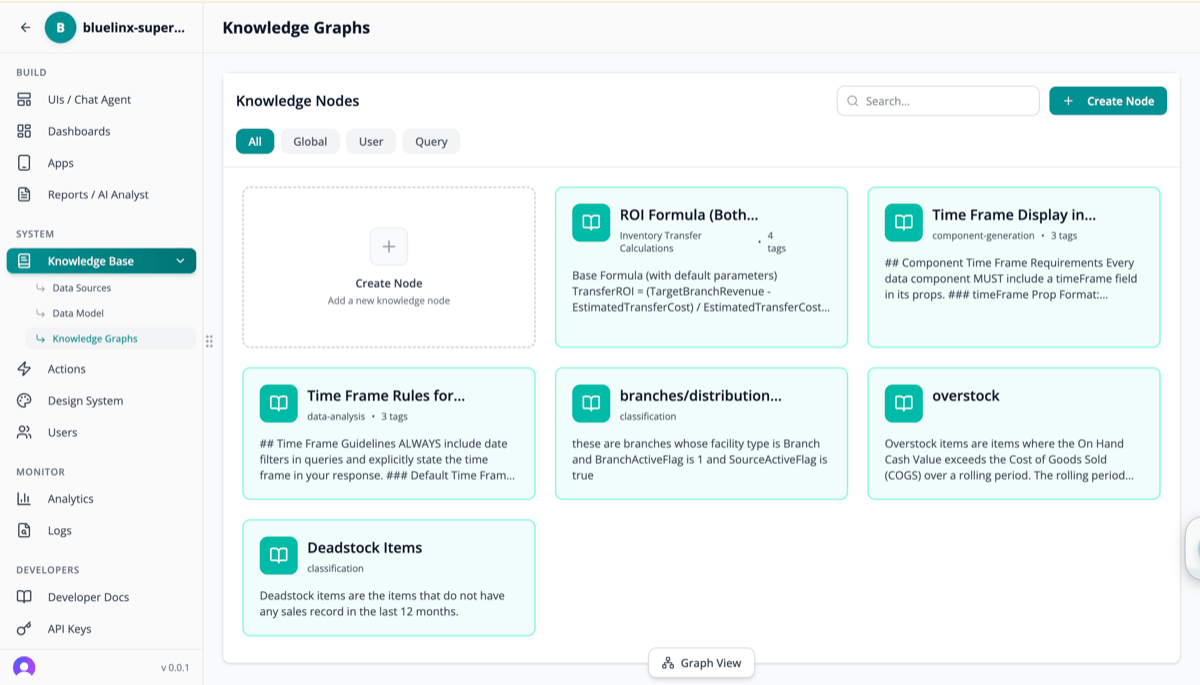
Knowledge node management
What’s Next?
Build a Dashboard
Combine multiple visualizations
Create a Report
Schedule automated delivery
Set Up Alerts
Get notified when metrics change
Add More Data
Connect additional sources
Need Help?
- Documentation — You’re in the right place
- Support — [email protected]
- Community — Join our Slack workspace